What is Video Editing Software?
Video editing software is exactly what it sounds like – software that can help you edit videos. This might sound niche, but video editors are used in practically every industry nowadays. Video editing can be an extremely useful skill to master, but it can be intimidating to get started. To help you out, we’ve done a lot of work to help point you in the right direction. Listed in this article are the 5 best free video editing software, organized based on how beginner-friendly they are, what kind of tools they have, and what kind of user they’re tailor towards.
A list of the best free video editors
5. Clipchamp

You can use Clipchamp here, but if you use Windows 11, it’s built in.
Clipchamp is an incredibly solid program, so much so that Microsoft has chosen it to be the native video editing program for Windows 11, much like Windows Movie Maker was for Windows up to 8. Unlike the other video editing programs on the list, it is fully browser-based, meaning that you don’t need a high-performance computer, and it also comes with native integration with Microsoft 365 and OneDrive. On top of that, the software has a large library of stock videos, audio, and templates, making it so you don’t even need to go online to hunt down resources to make a decent video. It also includes some basic AI tools such as text-to-speech and automatic subtitles. The free editor also lets you export at a very respectable 1080p, and you can even upload directly to social media by connecting your account to the program.
However, there are a couple of major downsides. For instance, it completely lacks multi-track editing, meaning that you’re guaranteed to be stuck making the most basic videos. It also lacks some features that professionals regularly use like color grading and motion tracking, meaning professionals should steer clear. And since it fully runs in a browser, performance depends on how fast your internet speed is, meaning users with slow internet should steer clear. The free plan also has restrictions such as watermarked premium assets and limited cloud storage.
It’s worth noting that because it’s owned by Microsoft, the odds are good that it will continue evolving, but for what it is right now, it will have to make up the bottom of this list.
4. CapCut
You can click here to download CapCut.
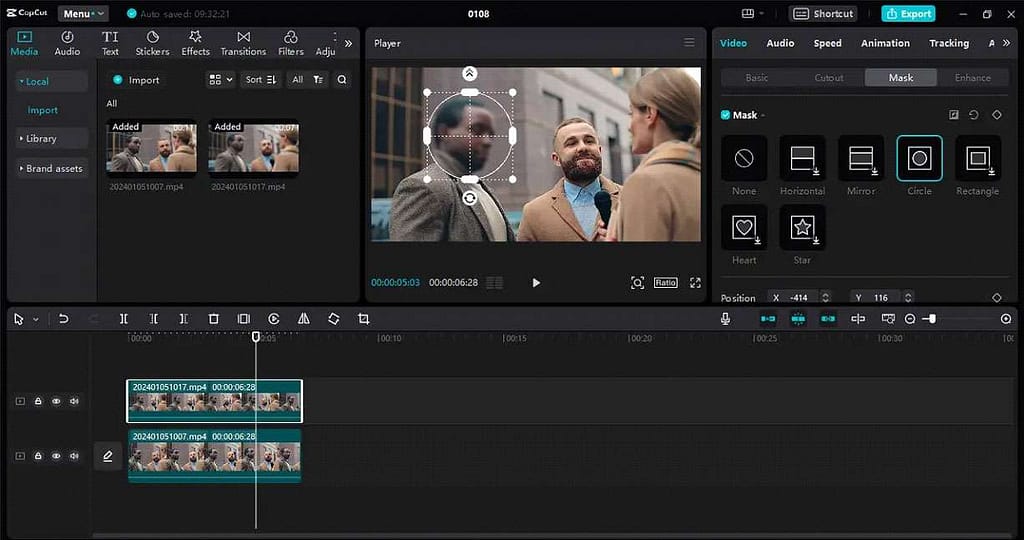
CapCut is a great choice for beginners. It’s extremely user-friendly, has a bunch of extremely powerful modern features, and most importantly, it’s completely free. The features it has include some of the latest AI tools such as auto-captioning, background removal, and motion tracking. This would make green screen work a lot smoother for all its users.
Compared to most free programs, it also has a ton of different effects, transitions, stickers and animations. This includes the basics such as fade, dissolve, zoom, spin, and fade but also includes some of more recent effects such as body outlines, lightning effects, and unique filters such as retro and vintage.
On top of everything, it is also available across a ton of platforms, including mobile and all desktops. Finally, unlike many other free video editing tools available, CapCut offers up to 8k60fps exports, which is a marked grade up from the 4k60fps most offer.
However, it also comes with a number of cons which leads to it being the lowest on this list. For instance, by far the most noticeable con is the fact that it places a watermark on exported videos that you need to dive into the settings to remove. On top of that, while CapCut has some very solid editing tools, it still lacks some advanced features that other editors like DaVinci Resolve or Adobe Premiere Pro has. Performance is also a running issue, with the software slowing down rather significantly the longer you work with it. Finally, although the free version does provide cloud storage, free users will experience enough restrictions in space that editing and saving a long video with it may prove unfeasible.
Overall, while CapCut is a great option for casual editing for social media or YouTube, those who need more advanced capabilities should consider some of the others on this list.
3. Shotcut
You can click here to download the program.

Shotcut is unique in that it is completely open source with no premium version or subscription fee. It also supports way more formats than most other editors thanks to its FFMPEG integration, which makes it extremely versatile. Unlike some other free video editors, it also supports an unlimited number of video and audio tracks, which some video editors on this list don’t support at all. There are also some advanced features such as keyframes, chrome key (aka green screen), 4k editing, and audio mixing. The program works on all desktop OSes, including Mac and Linux. Because it isn’t cloud-based, it also doesn’t require an internet connection to function.
However, while the program is incredibly powerful, there are a number of downsides. The most prominent is that it lacks the drag-and-drop function that most consumer-focused editors have. Another downside is that it doesn’t support GPU acceleration as much as the other editors, meaning that rendering will be more CPU and memory heavy than other editors as well as being slower. It also lacks many features like built in templates, stock assets, or AI powered tools.
It makes it a very good choice for advanced users who don’t mind a steeper learning curve, but you need to seriously put in the time and effort to learn it.
2. Kdenlive
You can click here to download the program.

Kdenlive is a powerful video editor. Just like Shotcut, it’s also completely free and open-source, with absolutely no restrictions on exports or watermarks, and it also works on all desktops. It also supports a wider range of formats than most video editors, and it also utilizes professional level tools such as keyframe animation, green screens, advanced transitions, and audio mixing. In many ways, it’s basically just Shotcut, but it has a couple of very important bonuses that makes it better.
Kdenlive utilizes hardware acceleration, making its performance a lot more consistent. Its UI is also a little more structured and easier to use than its contemporary as well. It also has more professional color correction tools as well as advanced green screen options. Most importantly, however, it has way more plugins and add-ons than Shotcut does, meaning it is far more flexible for some niche uses.
Despite all these genuinely powerful features, it also shares many of the same flaws as Shotcut. The UI, while more readable and simpler than its little brother, it’s still far more obtuse than consumer-focused video editing programs. Although it offers GPU acceleration, performance is still inconsistent, especially if you’re working with a lot of different editing tracks. It also lacks any kind of built-in AI tools and stock assets, which is becoming standard in most modern video editors.
Overall, it is a very powerful video editor that comes with absolutely no features restricted behind paywalls. However, it’s also a program you need to put time into learning to get to a level of functionality like other programs.
1. Davinci Resolve Free
Download the free version by clicking here.

DaVinci Resolve Free is pretty much the undisputed king of free video editors. It has by far the most professional-grade tools that you can possibly get without a subscription. It has industry-leading color grading, advanced video and audio editing, and most impressively, Fusion. Fusion is a unique node-based tool that is used for a variety of effects and animations and is effectively just Adobe After Effects but fully integrated within Davinci Resolve. A Node based workflow allows for far more flexibility and precision when you want to add effects into your video.
The program also supports multi-track editing, keyframes, and motion tracking, which is everything a professional editor needs. Unlike most free programs, it also allows for 4K exports with no watermarks, and it also runs on all desktops, making it accessible to pretty much everybody.
There are a couple of drawbacks. While its UI is better than Kdenlive and Shotcut, it’s still rather intimidating as it comes with a ton of different tabs, all of which do different things. One would need to look up long video tutorials to truly learn how to utilize this program to its full potential, making it extremely unfriendly to new users. It’s also extremely resource-intensive, meaning that users that lack a powerful GPU will struggle to utilize this program, depending on the complexity of the edit. The free version also lacks some premium features that one would need to pay for, such as noise reduction, advanced GPU acceleration, and collaboration tools. Finally, while it’s pretty much top of the line in terms of professional video editing, it doesn’t include any kind of AI-powered tools or built-in stock assets like CapCut or Clipchamp.
Davinci Resolve Free is ultimately still the best possible free option for professionals and serious editors. However, beginners will be overwhelmed and if you don’t have the hardware to support it, then this may not be the best fit for them.
Comparisons
In this section, we’re going to compare the five video editors utilizing four different categories: Ease of Use, Features, Performance, and beginner friendliness.
1. Ease of Use
- Clipchamp – Extremely beginner friendly, with a drag-and-drop interface that’s intuitive. Very suitable for casual editors and quick social media edits and has a feature to expedite the process of uploading online.
- CapCut – Also quite easy to use with its mobile friendly interface. A number of AI-powered tools eases the process of editing.
- Shotcut – Very complex and not as intuitive, with a steeper learning curve due to its open-source design and extremely obtuse UI.
- Kdenlive – More user-friendly than Shotcut due to its UI, but still requires in-depth learning due to its open-source design. Offers a mix of beginner and advanced tools with its community plugins.
- DaVinci Resolve Free – The most difficult and intimidating for beginners, with its professional interface. Has a massive learning curve but has incredible depth for those willing to invest time into learning it.
There is a pretty clear divide between casual and easy to use vs deep and difficult to use here. If you’re just looking for quick edit jobs that take under an hour or so, then you should go with Clipchamp or CapCut. If you want a more professional video editing job, then you should go with Shotcut, Kdenlive, or DaVinci Resolve Free.
2. Editing Features
- Clipchamp – Basic multi-track editing and text-to-speech. Has built-in templates and stock media but lacks advanced features.
- Capcut – Has a variety of AI-powered tools like motion tracking and auto-captioning and has a variety of effects/transitions. Similarly lacks advanced features.
- Shotcut – Full multi-track editing with keyframes, green screen, and 4K support but lacks built-in templates and AI tools.
- Kdenlive – Strong set of features, with multi-track editing, keyframes, and extensive effects. Lacks AI tools but plugins can help fill the gap in a little.
- DaVinci Resolve Free – Easily the most powerful of the five, featuring professional-level color grading, audio editing, motion tracking, and pretty much everything else you can think of.
Generally, you should balance how many features the program has against what you need from your program. If you’re planning on just doing some simple cuts and edits, then you can just stick with Clipchamp and Capcut as they will have more than enough for you to work with, while if you’re planning on doing professional editing, DaVinci Resolve Free is the king. Shotcut and Kdenlive are useful if you’re looking for some niche functions that the open-source nature may help with.
3. Performance & System Requirements
- Clipchamp – Cloud-based but depending on internet speed can lag with large files. Runs best on Windows 11.
- CapCut – Optimized for mobile but runs fine on desktop. Handles extremely effects heavy projects better than some open-source alternatives.
- Shotcut – No GPU acceleration, meaning that rendering and real-time playback speed is going to be slower than programs that do support it.
- Kdenlive – Supports GPU acceleration, but performance still heavily depends on how powerful your computer is.
- DaVinci Resolve Free – Requires a powerful system for smooth performance and only gets slower the more complex your project gets.
The best programs for a lightweight system are Clipchamp and CapCut. If you want something heavier, then Shotcut and Kdenlive are good options, but if you have a top-of-the-line system, then DaVinci Resolve Free is absolutely the way to go due to its sheer power.
4. Export Options and Limitations
- Clipchamp – Free users can export in 1080p. Premium stock assets require you to pay for use, but there are many free stock assets to choose from.
- CapCut – Free to export up to 4k, but a watermark will be applied if you use certain effects.
- Shotcut – Completely free in all regards and supports a very wide variety of formats.
- Kdenlive – Similar to Shotcut. Completely free without limitations.
- DaVinci Resolve Free – Allows 4K exports but lacks some pro features such as noise reduction or advanced GPU acceleration. Has a ton of quality options to tweak. Will not apply a watermark.
If we’re looking purely at export options, then Shotcut and Kdenlive are the best options here, as they support the widest range of formats. DaVinci Resolve Free has the most options when it comes to controlling the actual quality of the exports.
| Clipchamp | CapCut | Shotcut | Kdenlive | DaVinci Resolve Free | |
| Ease of Use | Drag and drop. Very easy. | Very easy. AI tools assist. | Steep learning curve and poor UI. | Some learning required. | Difficult, professional level. |
| Features | Basic editing, stock templates and assets | Motion tracking, auto-captioning | Advanced editing. Green screen and keyframes. | Multi-track effects, keyframes | Pro level editing, color grading, and effects |
| Performance | Internet-based, can lag with large files. | Optimized for mobile and desktop | No full GPU acceleration, slower on lower-end PCs. | GPU acceleration available | Demands a strong system. |
| Multi-Track Editing | Limited | Limited | Unlimited | Unlimited | Unlimited |
| Export Limitations | 1080p max for free users | 4K available, watermark on some effects. | No limits, fully free | No limits, fully free | 4K support, lacks advanced GPU acceleration |
| Best For | Beginners | Social media creators and beginners | Open-source enthusiasts | Semi-pro editors | Professionals |
| AI Tools | Text-to-speech, auto-captioning, background removal | Auto-captions, face tracking, background removal, AI upscaling, voice effects | None | None | Voice isolation, auto color matching, smart reframing |
| Ideal User Level | Beginners | Casual users to beginners | Intermediate | Intermediate to advanced | Advanced to Pro |
Which Video Editor is right for you?
Which editor is right for you depends on what you need them for. If you’re a mobile content creator, then CapCut is perfect for you as it has the perfect tools and UI for getting very quick edits done. If you’re working on your desktop, then Clipchamp is fine if you’re a beginner. However, if you’re looking to get more advanced, either Shotcut or Kdenlive have enough depth and longevity to keep you going for a while. Finally, if you’re looking to get the absolute most power a free video editor can have while also having a system powerful enough to support it, then DaVinci Resolve Free is an easy no-brainer.