The clipboard on iPhone is, like on almost every other device, one of the most frequently used yet least understood feature on your iPhone. Every time you copy text, an image, or a link, your iPhone will quietly store that information inside the system clipboard so you can paste it somewhere else. Most people know about that part. However, what most people don’t know is that you can make it do so much more.
Unlike the other devices such as Android, Windows, or macOS, the iPhone’s clipboard is a lot more obtuse. However, once you understand how it works behind the scenes and how you can manage and enhance it, then it becomes a much more powerful productivity tool. This guide will explain everything you need to know about the clipboard on iPhone and answer some of the more common questions like “Where is clipboard on the iPhone?” and “How do I access clipboard history?”.
What is the Clipboard on iPhone?
The clipboard is a temporary memory space that stores copied content so it can be pasted later. On iPhone and iPad, this content can include:
- Text
- URLs and links
- Images and Screenshots
- Files (in various supported apps)
When you tap Copy or Cut, iOS immediately stores that item in the clipboard. When you tap paste, the system will automatically retrieve the most recent copied item and inserts it into the active text field, message, note or app.
Unlike desktop operating systems, iOS can only store one clipboard item at a time. Every new copy action will overwrite the previous clipboard content. That means that while potentially sensitive data won’t be stored inside the clipboard and is simple enough to not confuse anybody, it also means that the iOS is heavily lacking in many powerful tools such as the clipboard panel or a history viewer. It also has problems with differentiating between plain text and more advanced formatted text, meaning that you could lose a lot of nuance when copying and pasting between many things.
Where is My Clipboard on iPhone?
A question that might be floating through your mind right now is “Where is the clipboard on iPhone?”
The answer is actually pretty simple in the iPhone’s case. The iPhone clipboard doesn’t have a physical location or a visible interface. Instead, it exists solely inside system memory. It can’t be opened like an app and it can only be used through the paste function. Searching for “clipboard” in the settings or app library won’t show you anything because Apple intentionally hides it to reduce clutter and prevent apps from accessing it without permission. Unfortunately, this also makes managing your clipboard a lot more difficult than it would be otherwise.
How to Manage Your Clipboard on iPhone
Just because the default Clipboard on iPhone isn’t accessible doesn’t mean you can’t improvise some ad-hoc methods of improvisation. The Notes app can help you manage your pasted text instead. By copy pasting your clipboard content in there, you can create a list of commonly used phrases that you can easily access at all times. Of course, such a solution is missing a lot of features that clipboards on other devices have.

- You won’t have any clipboard history. That means that you have to manually paste all your phrases instead of your clipboard automatically remembering everything you copied or cut.
- Notes can’t save any of your pictures or files. You’ll have to use your Files app on the iPhone to be able to store those, which will extend this solution to two apps and be even more cumbersome.
- While there is a Universal Clipboard feature that lets you copy paste between Apple products like iPhone, iPad, and Mac, you can’t do anything similar on other devices. This also isn’t a true clipboard sync, as your iOs doesn’t save clipboard content and thus can’t synchronize its history with other devices.
If you want the features that other device’s clipboards have, then you’ll need to download a clipboard manager app for the iPhone.
Clipboard Managers for iPhone
While iOS only allows access to the most recent clipboard item, third-party clipboard manager apps are there to pick up the slack. These apps can give you features that desktop clipboards boast, such as letting you save multiple copied items at once, organize them, keep a history of your copied items, and overall lets you make copy and pasting much more efficient. These apps effectively give you a ton of extra productivity tools that Apple doesn’t provide natively.
Cliply – An iOS Clipboard Manager
Click on this link to go to Cliply’s iOS store page.
Cliply is a clipboard manager that has a long history on iOS. Unlike the native iOS clipboard, which only stores one item at a time, Cliply automatically saves everything you copy like text, links, and images, and keeps it accessible through a clean, searchable interface.
Cliply integrates with various iOS features like widgets and Dynamic Island, allowing you to quickly access clipboard clipboard content without fully opening the app. It also emphasizes privacy by keeping your data stored completely locally unless you explicitly enable syncing.

It also boasts an unlimited clipboard history so copied items aren’t overwritten and a fast search function that helps locate older clipboard content that you may just remember you copied but can’t really find it in the sea of copied content.
If you’re anyone who copy pastes frequently like a student, writer, or a code developer, then this is a great app for you.
That’s not to say everything is perfect with this app. While the free version does have basic clipboard history and core copy and paste functionality, you will need to pay for extended history limits, advanced widgets, and premium UI features. However, the free version lasts forever, meaning that if you’re alright with the base features, then you won’t ever need to upgrade.
CopyClip – A Simple, Free Clipboard History App
Click here to go to CopyClip’s App Store page.
CopyClip is a lightweight clipboard manager focused on simplicity. Like a lot of other clipboard managers, it automatically captures copied text and stores it in a chronological list, allowing users to quickly reuse older snippets. It stands out by keeping the UI very minimal and easy to understand.

It has a couple of key features that help you manage your clipboard. There is an unlimited text clipboard history so pretty much everything you’ve copied can be saved. If that sounds like too much, you can bookmark or favorite important clips to put them at the top of the list and make them easier to find. Swipe gestures make it simple to delete clips that have fallen out of use as well. Finally, and arguably most importantly, there is dark mode support so you don’t have to worry about burning out your eyes.
Another advantage it has over its competition is that there are no features locked behind a paywall. It’s completely free to use! The only thing you pay for is to remove the ads that it displays to support itself.
Overall, if you’re just looking for a solid and basic app to help you get used to these kinds of apps, then CopyClip is a great choice.
Pycopaste – An Expansion on iCloud syncing
Click here to go to Pycopaste’s app store page.
While there is a universal clipboard between Apple devices that lets you copy paste between them, it’s an extremely limited feature as it’s limited to a single entry in the clipboard. That’s where Pycopaste comes in. This app can sync across all Apple device while providing the hard-hitting features that clipboard managers bring, making it a far superior option to the built-in universal clipboard.
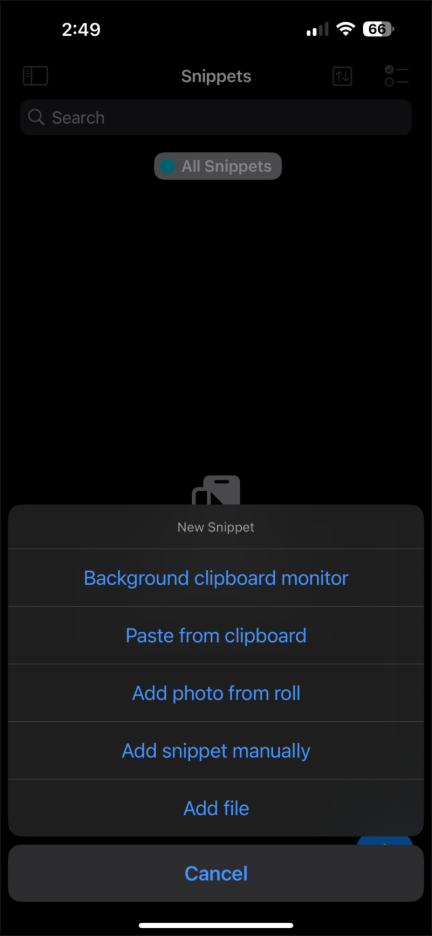
Instead of a flat clipboard list, Pycopaste lets you categorize all your copied content, making it way easier to manage large volumes of text, images, and links. For example, you can make a category for some kind of project and put all the relevant clips inside that and then create a separate category for funny internet memes that you want to copy paste to your friends.
The app also boasts widgets and Spotlight integration, meaning that you can add this app to your home screen instead of having to navigate to the correct page of the app to open it. Spotlight integration means that you can use the iPhone’s spotlight search feature to search through your app’s clipboard instead of searching inside the app itself.
Finally, the app has various biometric security features like Face ID and Touch ID. Because this app is less secure due to needing access to cloud features, it compensates by utilizing these security features.
Unfortunately, however, this app has a ton of features locked behind a paywall. If you try to use it as a free user, it only lets you store up to 10 snippets. However, one purchase lets you use this app across all your Apple devices.
Get the Most Out of the Clipboard on iPhone
While iPhone’s native clipboard can handle copying and pasting perfectly fine, with a little bit of cloud syncing with other Apple devices, you just can’t get around the fact that it’s extremely limited. If you want to get more out of your clipboard on iPhone, you’ll need to download a clipboard manager that can give you the features that a proper clipboard ought to have.
If you just want to get started and have some extra functions, then CopyClip is a great place to start. It’s completely free and can store an unlimited amount of clips. If you want to take a step up, then Cliply is a great middle ground, as it features a couple more features like fast search and widgets. However, you’ll have to pay for a lot of the advanced features. And if you’re willing to pay for the best, then Pycopaste has a great variety of advanced features, but you’ll need to pay to unlock all of them.
Whatever you pick, we hope that this guide has helped you!
If you want to learn more about Android’s clipboard, click here!
If you want to learn more about your Windows 11 clipboard, click here.
If you want to learn more about your clipboard on macOS, click here.